Running Large Language Models (LLMs) locally on your own machine is no longer reserved for AI researchers. With privacy concerns rising and cloud-based API costs adding up, learning how to run a local LLM like Llama 3.2 or Mistral directly on your Mac or Windows PC has become the go-to solution for developers and creators.
In this guide, you will learn how to set up and run a local LLM using Ollama in under 10 minutes—completely free, fully offline, and with 100% data privacy.
Why You Should Run a Local LLM Today
Before diving into the setup, here is why millions of users choose to run a local LLM instead of relying on cloud AI services:
- Complete Privacy: Your data never leaves your computer when you run a local LLM.
- Zero Cost: No monthly subscriptions or API token fees.
- Offline Functionality: Access your AI assistant anywhere without an internet connection.
- Customization: Tweak system prompts, parameters, and integrate models with local tools like Obsidian or VS Code.
System Requirements Overview
While Ollama makes it easy to run a local LLM, performance heavily depends on your hardware specifications::
| Hardware Component | Minimum Requirement | Recommended for Optimal Speed |
| Operating System | macOS 12 (Monterey) / Windows 10 (64-bit) | macOS 15+ (Sequoia) / Windows 11 |
| RAM | 8 GB (for 1B/3B models) | 16 GB – 32 GB (Unified Memory or System RAM) |
| GPU | Apple Silicon (M1/M2/M3/M4) or Integrated Graphics | Apple Silicon Pro/Max or NVIDIA RTX 3060+ (6GB+ VRAM) |
| Storage | 10 GB available SSD space | 50 GB+ NVMe SSD (for multiple model downloads) |
Step 1: Download and Install Ollama
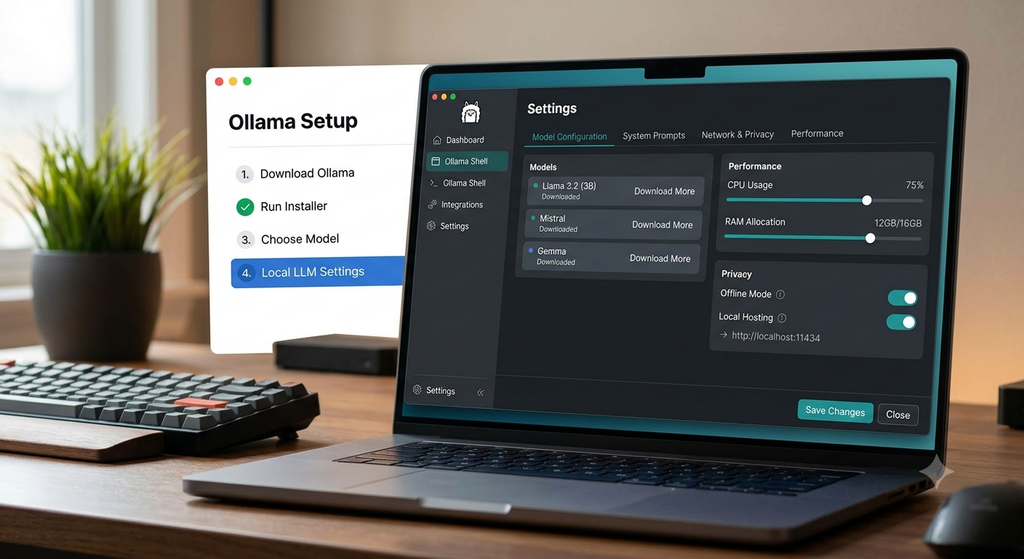
Ollama is a lightweight, open-source application designed to run open-source LLMs seamlessly.
- Visit the official website: ollama.com
- Click Download and select your operating system (macOS or Windows).
- Run the installer file:
- On Mac: Move Ollama to your
Applicationsfolder and open it. - On Windows: Run the
.exesetup wizard and follow the on-screen instructions.
- On Mac: Move Ollama to your
- Once installed, Ollama will run quietly in your background terminal or menu bar.
Step 2: Choose and Run Your First Model
Ollama features an extensive library of popular open-source models, including Meta’s Llama 3.2 (3B), Mistral, and Google’s Gemma.
To launch the recommended 3B parameter model, open your Terminal (Mac) or Command Prompt / PowerShell (Windows) and type the following command:
Bash
ollama run llama3.2
Note: The first time you execute this command, Ollama will automatically download the model weights (approx. 2.0 GB). Once downloaded, the interactive chat prompt will open instantly.
Step 3: Interacting with Your Local AI
Now you can chat with your local model directly in the command line interface. To get the most out of your local model, try using structured system prompts.
Practical Code Review Prompt Example
Copy and paste this prompt template directly into your terminal to test high-level reasoning:
Plaintext
Act as a Senior Software Engineer. Review the following snippet for potential memory leaks, security vulnerabilities, and code readability:

[Insert your code here]

Provide your feedback in three sections:
1. Critical Issues
2. Optimization Suggestions
3. Refactored Code Block
Essential Ollama Terminal Commands
/help– View available commands./clear– Clear the current conversation context./?orCtrl + D– Exit the chat session.ollama list– View all locally downloaded models on your machine.ollama rm <model-name>– Remove a model to free up disk space.
Step 4: Add a Graphical User Interface (GUI)
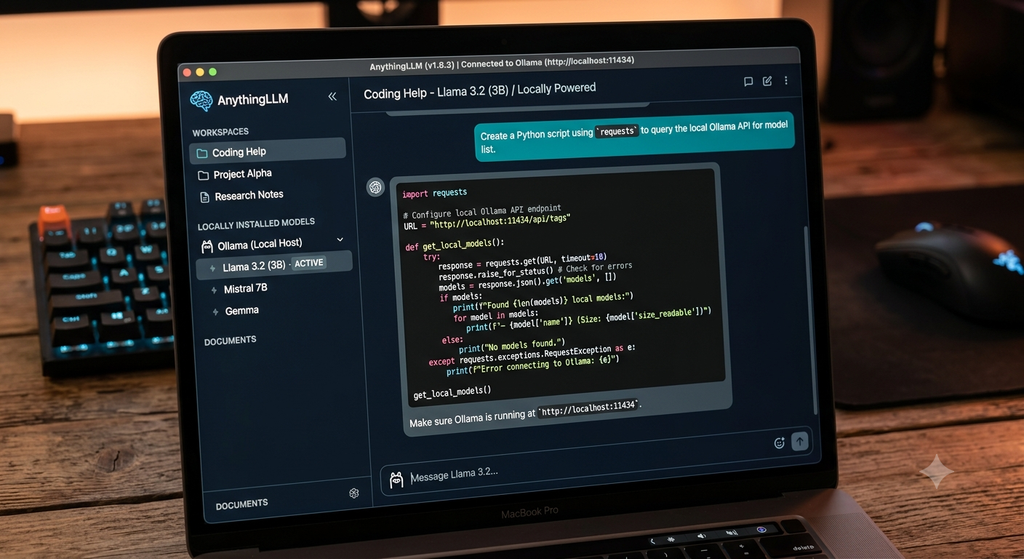
If you prefer a ChatGPT-like web interface instead of the command line, you can easily pair Ollama with local GUI extensions:
- Page Assist (Chrome Extension):
- Install Page Assist from the Chrome Web Store.
- Ensure Ollama is running in the background (it serves locally at
http://localhost:11434). - Open the extension sidebar in Chrome, select
llama3.2from the dropdown, and start chatting directly from your browser.
- AnythingLLM Desktop:
- Download AnythingLLM and select Ollama as your LLM Provider.
- Enter
http://localhost:11434as the Base URL. - Upload local PDFs, Markdown files, or text documents to chat with your local files securely.
Troubleshooting Common Issues
- Slow Response Speeds: If the model takes too long to generate text, your computer may be low on RAM. Try downloading the ultra-lightweight 1B parameter model instead to run a local LLM faster:
ollama run llama3.2:1b. - Port Conflicts: Ensure no other application is occupying port
11434.
Conclusion
Setting up to run a local LLM with Ollama is the fastest way to take control of your AI workflow without relying on external servers or subscriptions. Whether you need a private coding assistant or an offline writing tool, local AI offers total security and unlimited customization.